
What this means
- A foreman is a nominated user who represents a subcontractor’s crew on a specific site.
- Foreman access is set per site and per subcontractor company, and can be turned on/off by the site team.
- Once nominated, a foreman can perform certain actions on behalf of their crew (depending on what’s enabled).
When you’ll use this
- You want permits and forms to clearly show which workers were involved (not just one submitter name).
- You want a subcontractor supervisor to handle crew admin without the site team doing it manually.
- You want better compliance records and audit trails for who did what work, on which day, with which crew.
Get Your Crew Checked In & Ready to Go
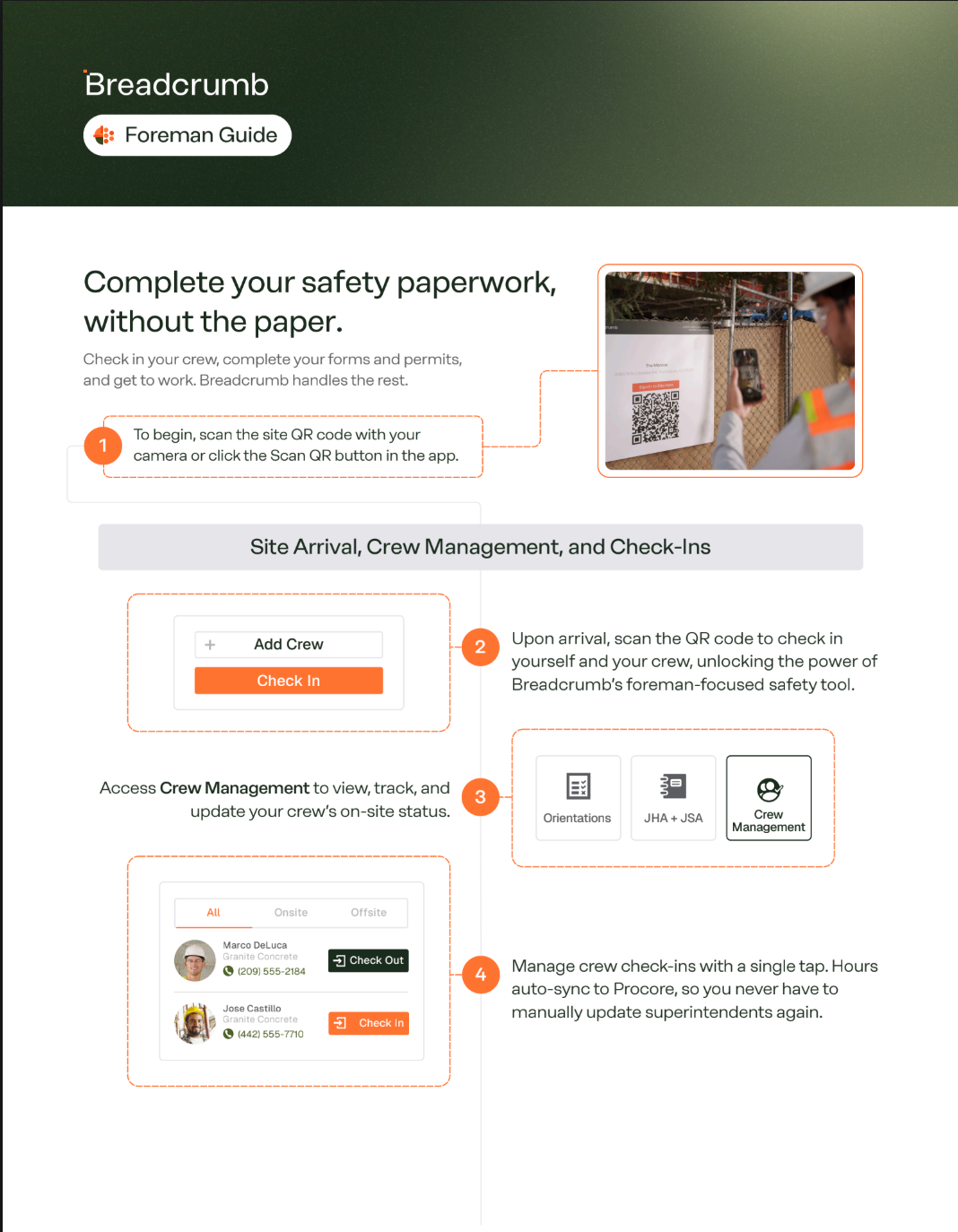
We’ve put together a handy printable one-pager for Foremen, covering everything you need to get your crew on site and cracking — from checking in your team to completing forms and permits and getting the job underway.
Download Here to view the Full Guide
Key Considerations
-
Confirm the site is using the Foreman Workflow
- Foreman features must be enabled for the site/company and the relevant subcontractor must be set up on the site
-
Make sure the foreman appears in the system
- The person you want to nominate typically needs to have checked in on this site under that subcontractor at least once (so they appear as an eligible selection)
-
Nominate a foreman for a subcontractor on a site
- In NextGen, open the site
- Go to Companies (site-level)
- Open the subcontractor company
- Select the option to add/assign a foreman (label may vary)
- Select the worker(s) to nominate and save
-
Choose what the foreman is allowed to do (capabilities)
- Depending on your setup, you can enable one or more of these:
- Add crew to permits
- Add crew to forms (generic forms)
- View crew tile (see who is on/off site for their company)
- Check crew in and out
- Depending on your setup, you can enable one or more of these:
-
Foreman uses the workflow on site
- After the foreman scans the site QR and checks in, they will see the foreman-enabled options and can complete actions for their crew
What a foreman can do (common actions)
Add crew to a permit
- Foreman opens the permit on site
- Selects Add Crew
- Chooses the crew members (from the same subcontractor company)
- Collects signatures (if required) by handing the device to each worker
- Saves and submits
Add crew to a form (generic form / pre-task plan)
- Foreman opens the form
- Selects Add Crew
- Chooses the crew members
- Collects signatures (if required)
- Submits the form
Check crew in/out (if enabled)
- Foreman opens the crew list/tile
- Selects workers to check in or check out
- Confirms the action
Common issues
I can’t find the worker to nominate as a foreman
What to check
- The worker has checked in on this site under the correct subcontractor company at least once
What to do
- Ask the worker to scan the site QR and complete a check-in first, then try again
Foreman can’t add a worker from another company
What to check
- Foremen can only manage crew within their own subcontractor company on that site
What to do
- If another subcontractor needs foreman access, nominate a foreman for that subcontractor separately
Foreman features disappear after the foreman checks out
What to check
- Foreman actions typically require the foreman to be checked in to the site
What to do
- Have the foreman check back in to regain access for that shift
Why this matters
- Improves traceability: permits and forms show exactly who was involved
- Reduces admin load on site hosts by delegating crew actions to subcontractor supervisors
- Strengthens compliance records without relying on free-text crew lists
Need help?
If you can’t see the option to nominate a foreman in NextGen, or you’re unsure which foreman capabilities should be enabled for a site, contact your site admin to confirm the site setup and permissions for foreman management.
If you require any assistance or have a question, please contact our Support Team on +44 7400 977 382 or email us at support@breadcrumb.co, and we'll be happy to help.