
What this means
- Breadcrumb pushes site attendance data into Procore’s Site Diary (Daily Log)
- This typically includes manpower hours and visitor log entries based on check-ins on site
When you’ll use this
- When your project team wants Procore to reflect daily site attendance captured in Breadcrumb
- When you want to reduce manual updates to Procore Daily Logs and improve consistency across systems
Step-by-step
-
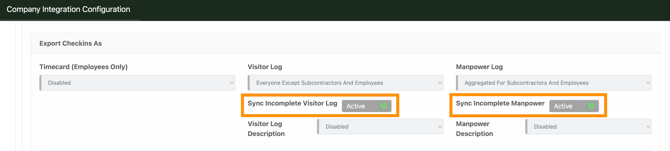
In Breadcrumb, go to your Procore integration settings and confirm Site Diary Sync is enabled.
-
Keep the Procore Daily Log (Site Diary) open during the day.
- Automatic syncing relies on the Daily Log staying open while new entries are being added.
-
Have workers and visitors check in and check out as normal in Breadcrumb.
- Breadcrumb will send the attendance data to Procore based on those site movements.
-
Allow time for syncing.
- Changes won’t always appear instantly. Typically, updates land after a short delay rather than in real time.
-
If the Procore Daily Log has been closed and you still need updates to sync:
- Enable the setting that allows Procore Daily Logs to be reopened for syncing (if available in your Procore integration version). Consult your Customer Success Manager before initiating this.
- Use a manual/force sync approach (depending on your setup and permissions)
Common issues
Daily Log is closed in Procore
If Procore’s Daily Log is closed, new Breadcrumb entries may not sync automatically.
What to check
-
Confirm whether the Daily Log for that date is marked complete/closed in Procore.
What to do
-
Re-open the Daily Log in Procore (or enable the integration setting that allows automatic re-open for syncing, if your version supports it), then re-run the sync.
Hours or people look out of date
Sometimes Procore updates lag behind Breadcrumb due to sync timing or volume.
What to check
-
Confirm the check-in/check-out activity is correct in Breadcrumb first, then verify the Procore Daily Log is still open.
What to do
-
Wait a while, then refresh Procore. If it’s still not updated, use a manual/force sync process based on your internal set up.
Fields you expect don’t appear in Procore
Not every field captured in Breadcrumb is designed to map into Procore’s Site Diary.
What to check
-
Identify the exact Procore field you expected to populate (for example, trade/industry type).
What to do
-
Use Breadcrumb and Procore as intended: Breadcrumb provides the attendance and hours signals, while other Procore fields may still require manual entry depending on the Procore schema and integration mapping.
Why this matters
- Keeps Procore Daily Logs aligned with real on-site attendance captured in Breadcrumb
- Reduces double handling and improves confidence in daily reporting across the project team
Need help?
If Procore isn’t updating as expected, check whether the Daily Log is closed and confirm Site Diary Sync is enabled in your integration settings. If you’re still stuck, contact your internal Breadcrumb admin or support owner for your account to review your Procore permissions and sync settings.
If you require any assistance or have a question, please contact our Support Team on +44 7400 977 382 or email us at support@breadcrumb.co, and we'll be happy to help.