
When a worker adds a CSCS card to their induction, Breadcrumb checks the card number with CSCS Smart Check and brings the result into your review. You can see whether CSCS confirmed the card and the following information, pulled up next to the photo of the card the worker provided.
-
Cardholder name
-
Card status
-
Worker profile photo
-
Expiry date
This article covers reviewing a card via CSCS Smart Check in Breadcrumb: what the worker sends you, how to read each status, how to run the check again, and where to find a card after the induction is done.
Before you start
- Your company needs to have the CSCS Smart Check integration enabled. A company admin sets this up once. Until they do, cards still upload and appear in your review, but no automated check runs.
- The induction needs to ask for a CSCS card using the CSCS Card document type. If you're not sure, ask your company admin.
- Only new inductions are checked. Cards submitted before the connection went live aren't checked retrospectively.
What the worker sends you
During induction, the worker enters:
- Their CSCS card registration number
- The card's expiry date
- A photo of the front and back of the card
When the worker submits the induction, Breadcrumb sends the details to CSCS Smart Check and displays the verification result within the Induction review process.
Reviewing a card in an induction
- Open the induction you want to review.
- In the right panel, find the card under Cards. Each card shows its status, so you can see at a glance which one needs attention.
- Select the card to open it.
The card view shows the result of the check alongside everything the worker sent:
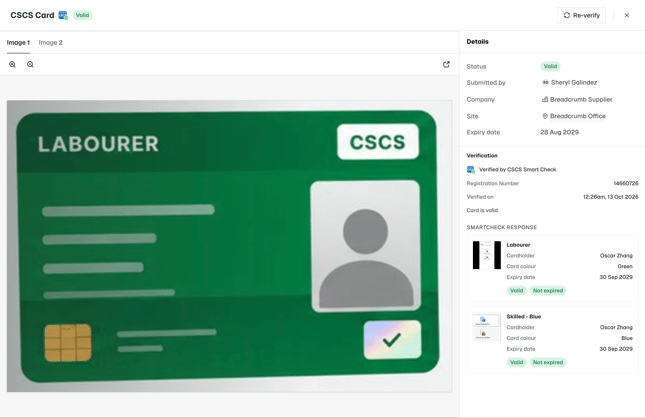
- Status: the outcome of the check
- Card holder, card type, card colour, expiry date and photo, as CSCS holds them
- Registration number
- Site, company and submitted by
- Verified on: when the card was verified
- The front and back photos the worker uploaded
Compare what CSCS returned with the worker's photos and the person in front of you. Then approve the induction, reject it with a comment, or re-verify the card.
A card that comes back expired or invalid doesn't block approval or sign in on its own. The decision stays with you.
Read the statuses
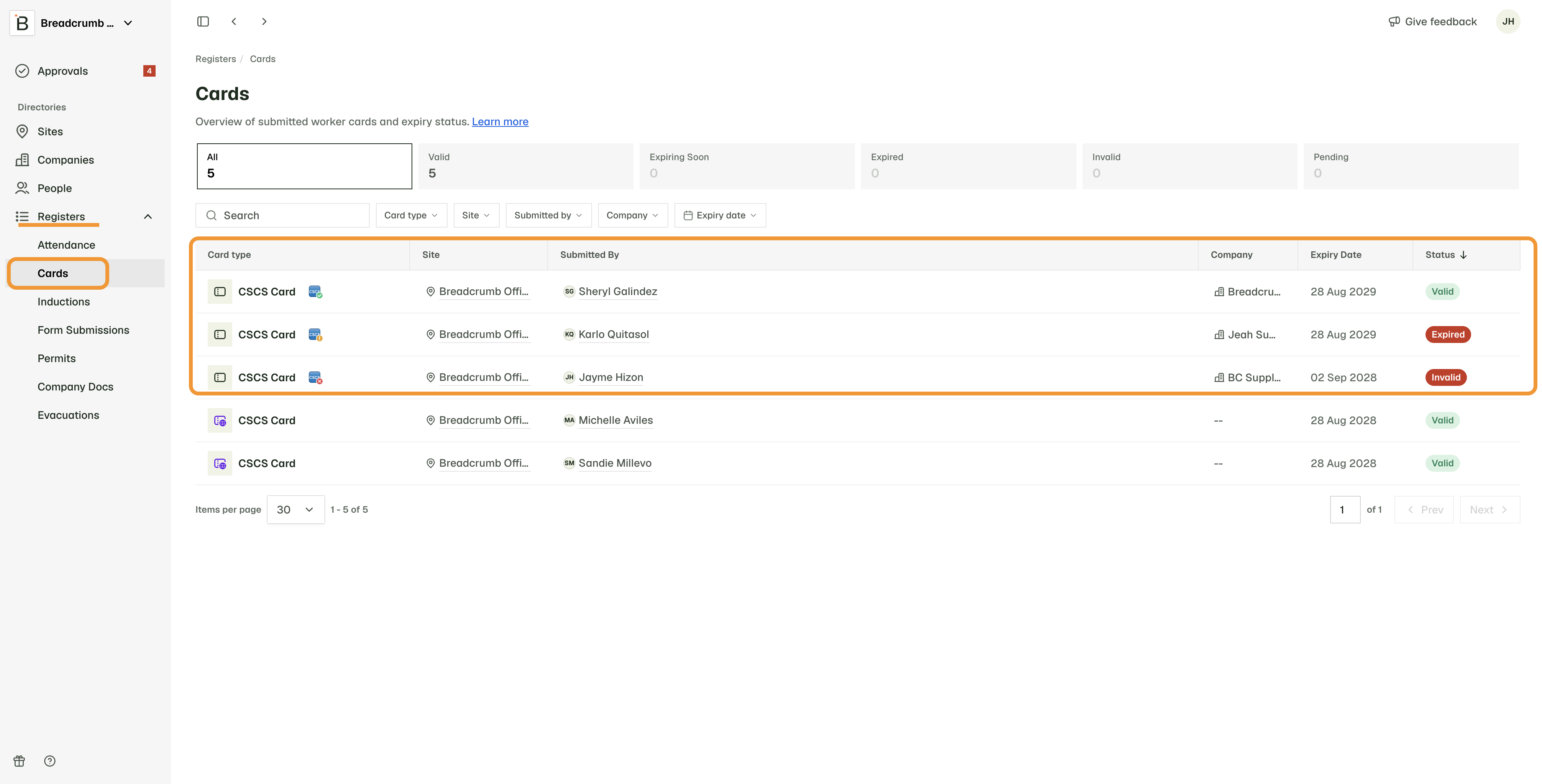
CSCS cards carry a small CSCS mark next to the card type. Hover over it to see what the check found and when it last ran.
| Status | What it means | What to do |
|---|---|---|
| Valid | CSCS confirmed the card and it's in date. The mark shows a green tick and reads "Verified by CSCS Smart Check". | Check the name and photo match the worker, then carry on with your review. |
| Expired | CSCS confirmed the card, but its expiry date has passed. | Ask the worker for their current card. Approving is still your call. |
| Invalid | CSCS couldn't confirm the card. The number may be wrong or the card may not exist. The mark reads "Card not found by CSCS Smart Check". | Check the number against the card photo, run the check again, or reject the induction with a comment. |
| Pending | The check is still running or hasn't run yet. The mark reads "Pending verification by CSCS Smart Check". | Give it a few minutes and refresh. If it stays pending, run the check again. |
Invalid and Pending only appear once your company is connected to CSCS Smart Check. Until then, you see the same card statuses as any other card.
Key Considerations
An invalid result doesn't mean the card is fake
The most common causes are a mistyped card number. Check it before you treat it as a fraud problem.
It works the other way too. A valid result confirms the card is real and in date. It doesn't confirm the person holding it is the cardholder. Use the photo CSCS returns and the card holder name to check that yourself.
If the expiry dates don't match
The card view shows the expiry date CSCS holds. Elsewhere in Breadcrumb, including the Cards tab, the card keeps the date the worker entered. If the two differ, trust the CSCS date and ask the worker to correct theirs.
What You Need to Do For an Invalid Result
1. Run the check again
Select Re-verify in the card view. The button reads "Checking with CSCS..." while it runs, then the status updates.
Re-verify is worth trying when:
- Your company connected to CSCS, or updated its connection, after the worker submitted
- The first check couldn't reach CSCS
Three things can come back:
- The card is confirmed. The status updates.
- CSCS still can't confirm it. You see "We checked again but CSCS still couldn't confirm this card." Check the card number against the photo first.
- CSCS can't be reached. You see "We couldn't reach CSCS just now. This looks like a problem on their side, not the card." Try again shortly. Nothing is rejected automatically, and you can review the photos and decide.
Re-verify checks the details the worker already submitted. You can't edit the card number yourself. If the number is wrong, reject the induction with a comment asking the worker to resubmit with the correct number.
2. Find a card after the induction
Cards stay with the worker, so you don't need the original induction to look one up.
- From the worker: open their profile and go to the Cards tab. Every card they hold is listed with its type, the sites it covers, its status and its expiry date.
- From the site: open the site's Cards tab to see the cards held by everyone working there.
- From the registers: open the Cards register to see all submitted cards.
Filter either list by status to pull out the cards that need attention, for example everything Invalid or Expired. Selecting a card opens the same card view, with the same details and the same Re-verify option.
Checks belong to your company
Your company connects to CSCS Smart Check with its own agreement, and each result is saved against your company's record of the card. That means that other companies run their own checks. If the same worker inducts with another company, that company gets its own result. A card confirmed for you isn't confirmed for them, and their result has no effect on yours.
Need Help?
If you require any assistance or have a question, please contact our Support Team on +44 7400 977 382 or email us at support@breadcrumb.co, and we'll be happy to help.